
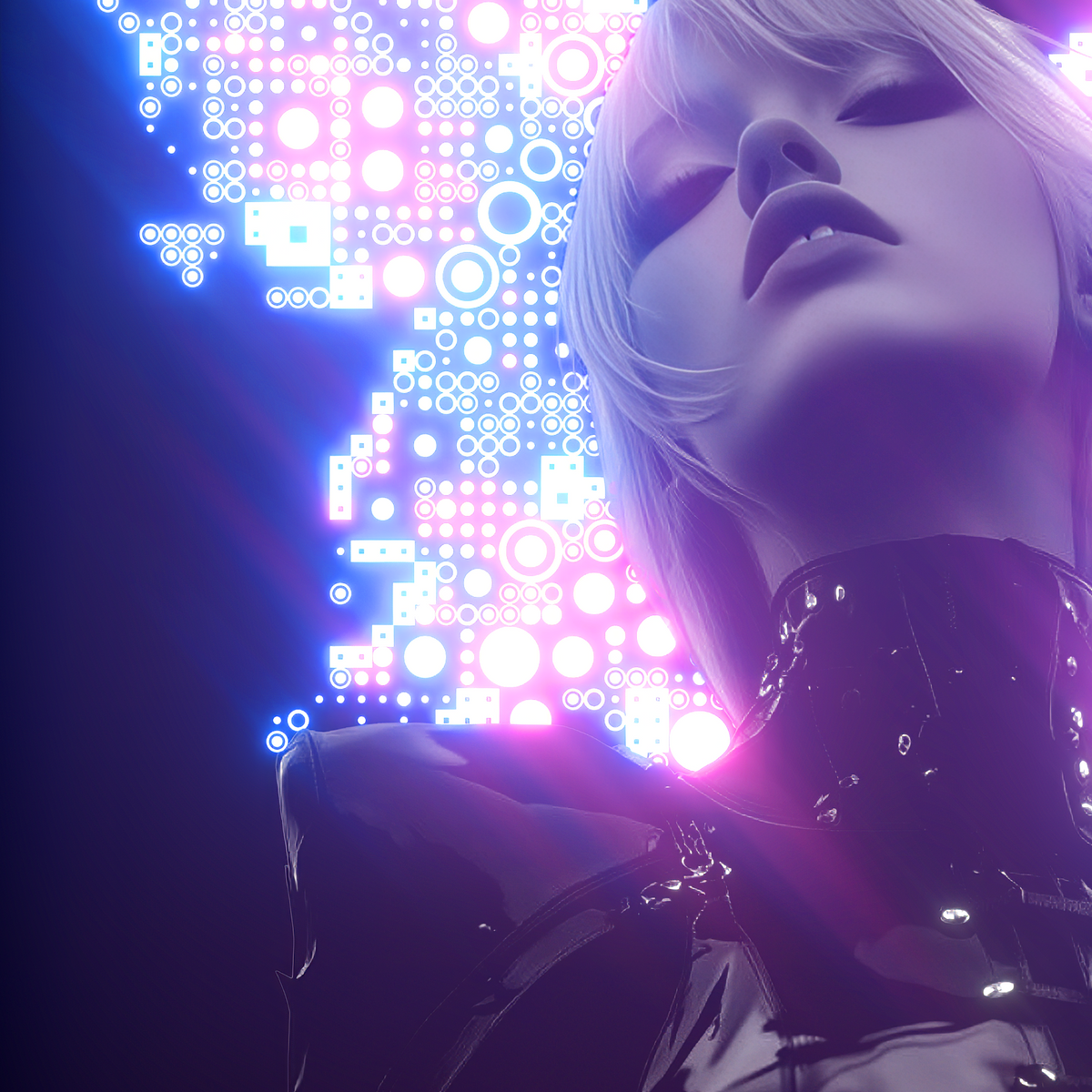
Bloom
Let the light spill.
Build a soft halo around bright details. Keep it close to the edges, or open it up into a wash of color.
Control the amount and size. Use the highlights threshold to decide what starts glowing.
Photoshop Plugin
Bloom, anamorphic streaks, and glare.
Shape the light in your images.

Soft atmosphere. Long streaks. Sharp glints.
Build your finish with all three.
Build a soft halo around bright details. Keep it close to the edges, or open it up into a wash of color.
Control the amount and size. Use the highlights threshold to decide what starts glowing.

Stretch highlights into streaks that move through the composition. A different kind of energy for the same image.
Shape the length, width, and direction of the light.

Turn bright points into sharp star glints. Bring attention to jewelry, reflective edges, and the smallest highlights.
Choose 2, 4, 6, or 8 rays, then adjust the angle and spread.
Use a color or brush mask to target
where you want the glow to appear.
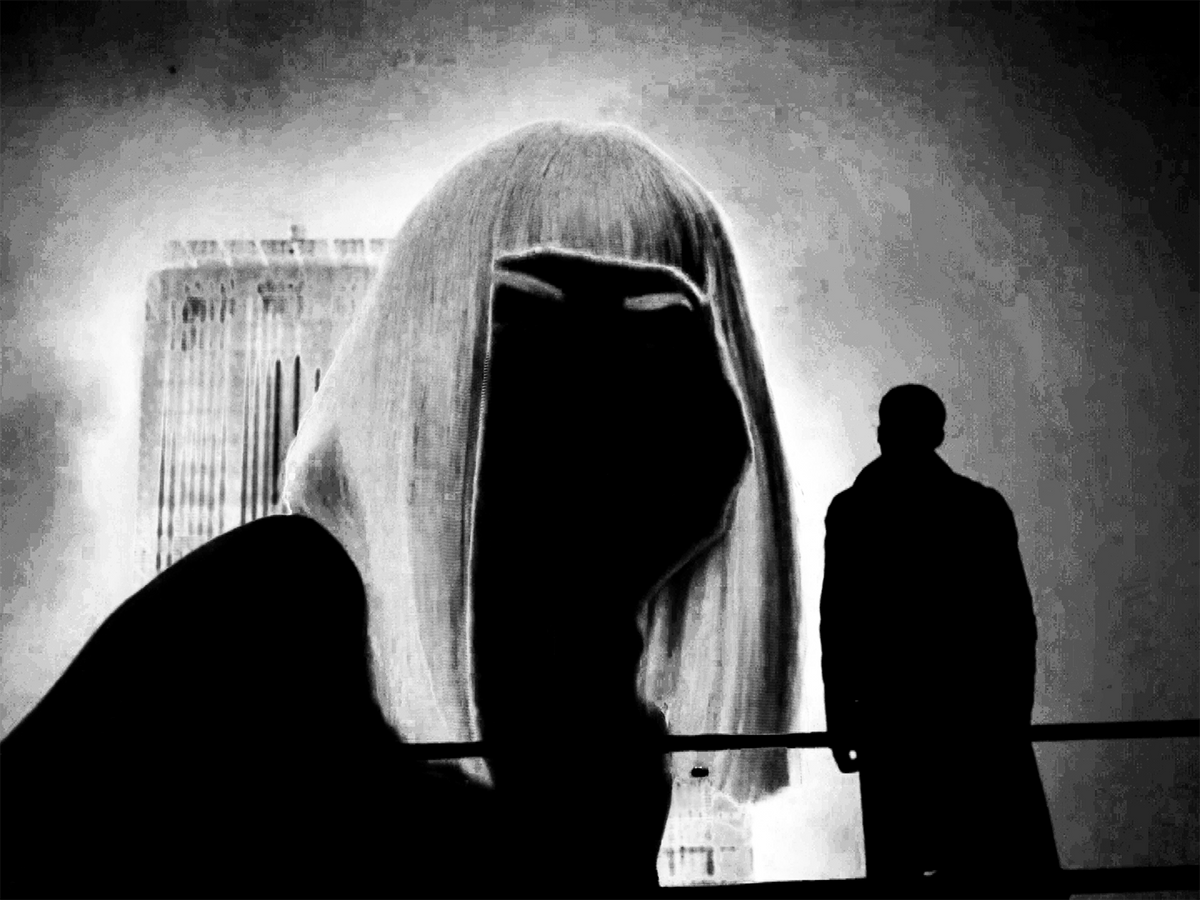
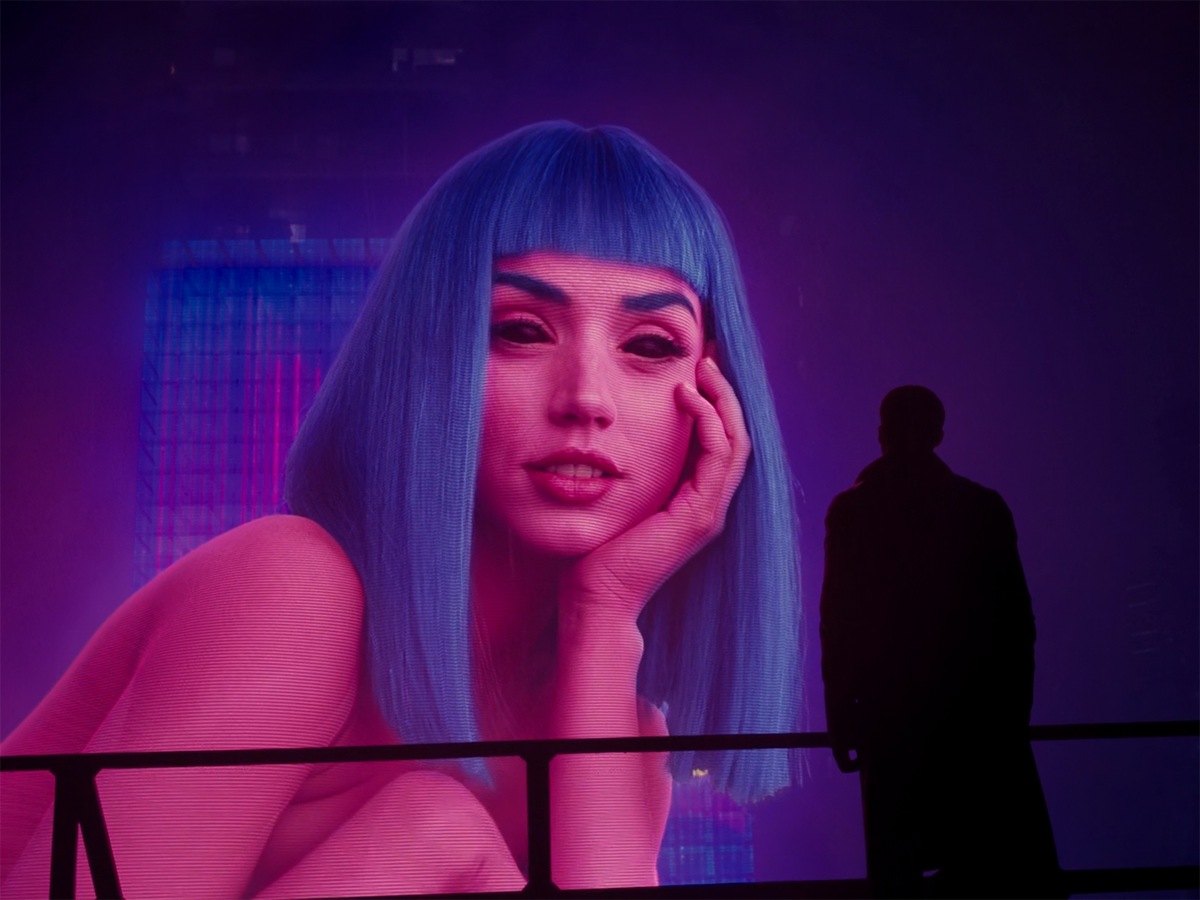
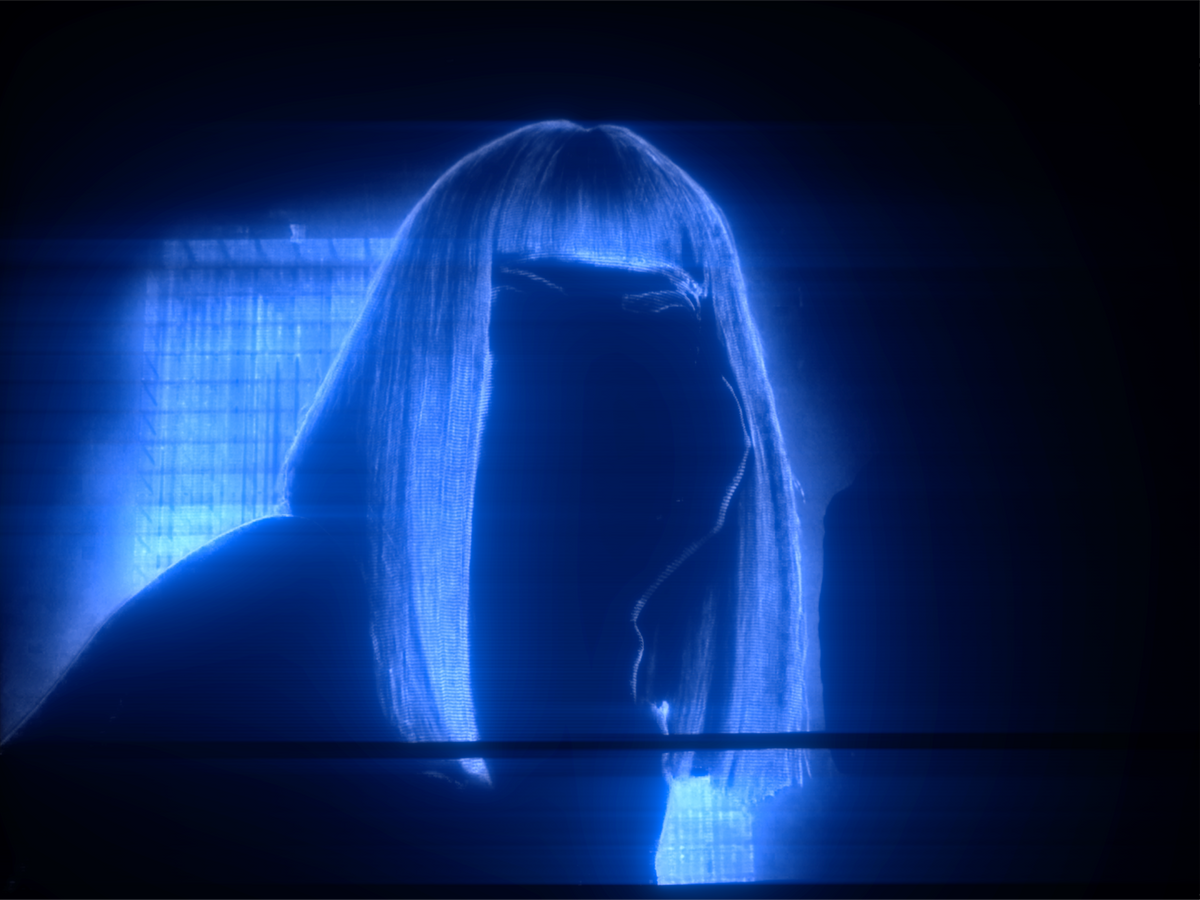
Seven themes. The same controls.
Choose the one that fits your workspace.


Preview in the live viewer or directly in your Photoshop document.


A dedicated panel inside Photoshop.
Make the adjustment. See what changes.
Follow a layer, lock it while you work, or take a Snapshot of the visible composition.
Paint a mask or select a color to control where the glow begins, then let the light spread naturally.
Start with a preset, make it yours, and save the settings for your next piece.
Move the slider.
See what the light changes.

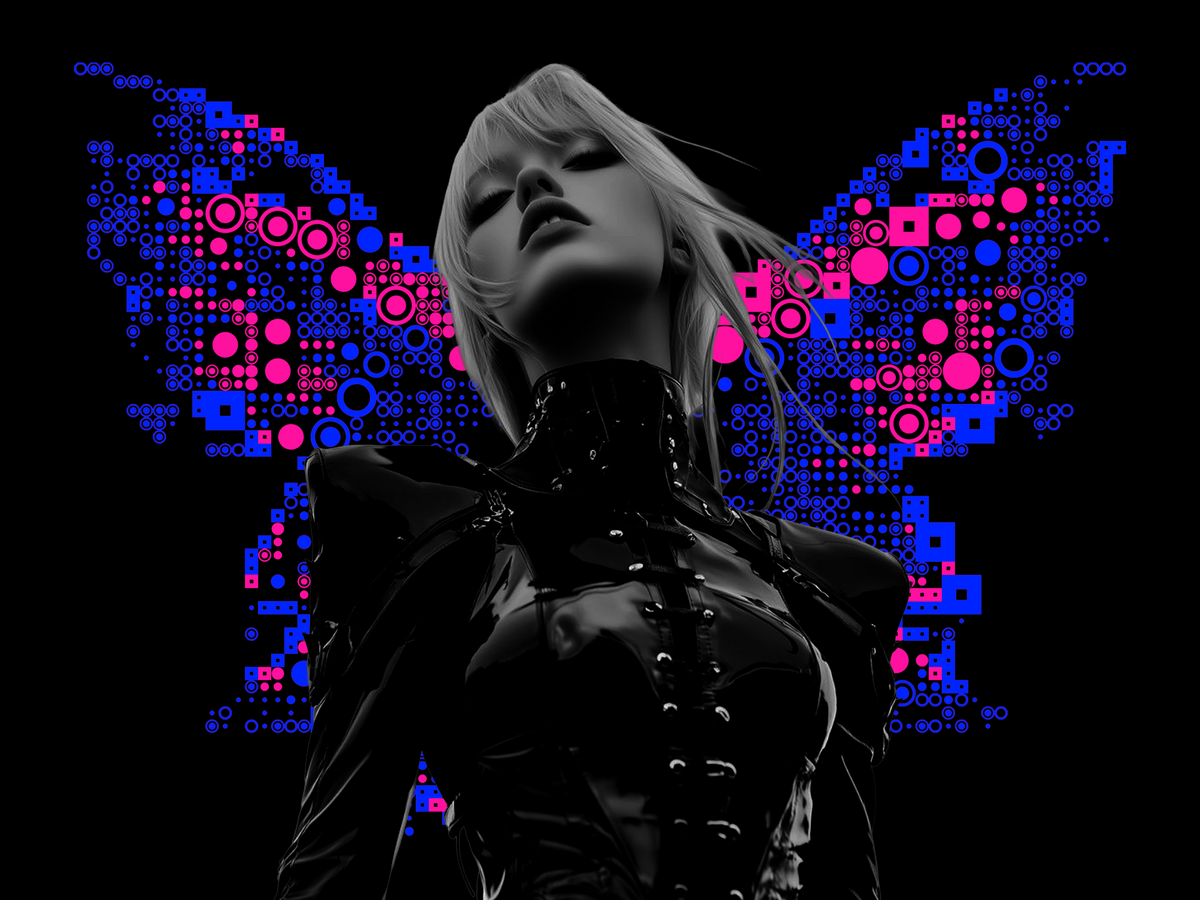

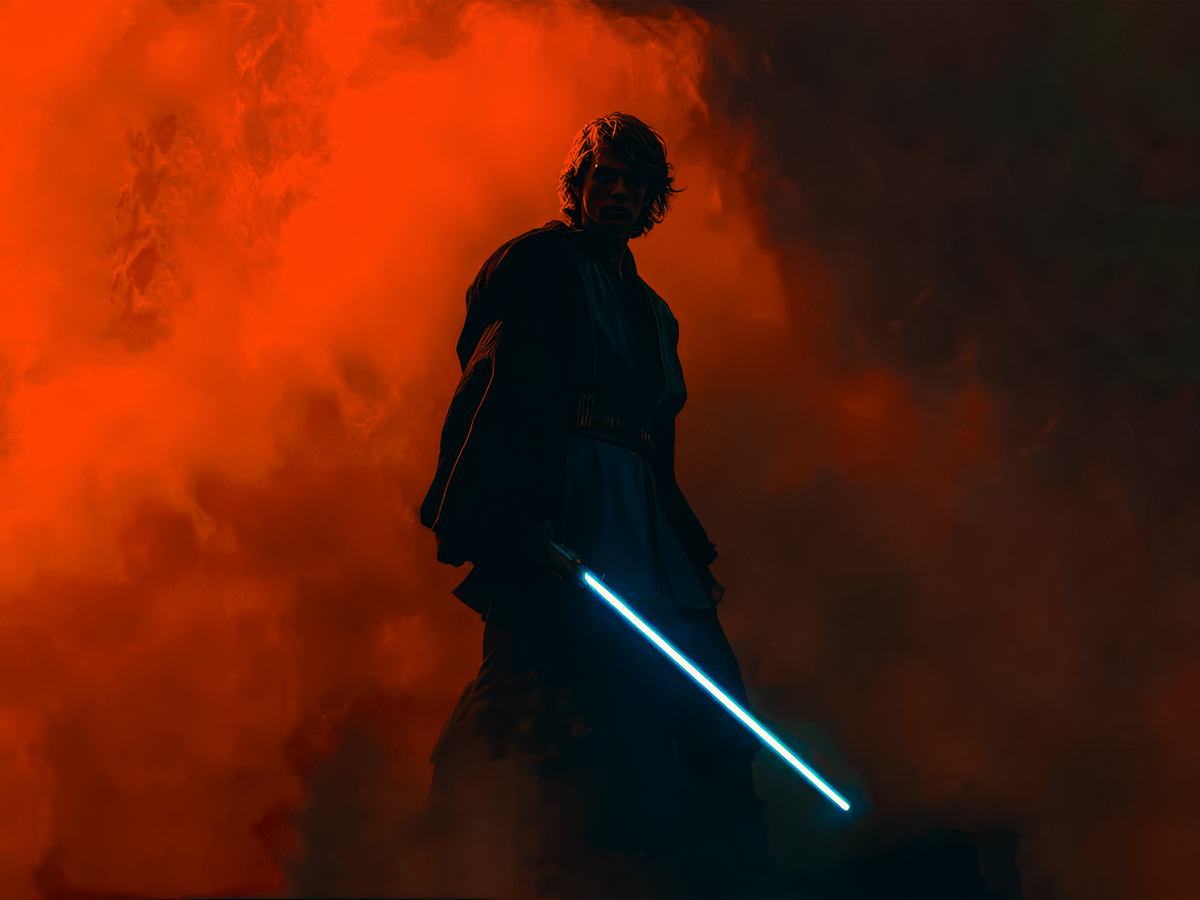

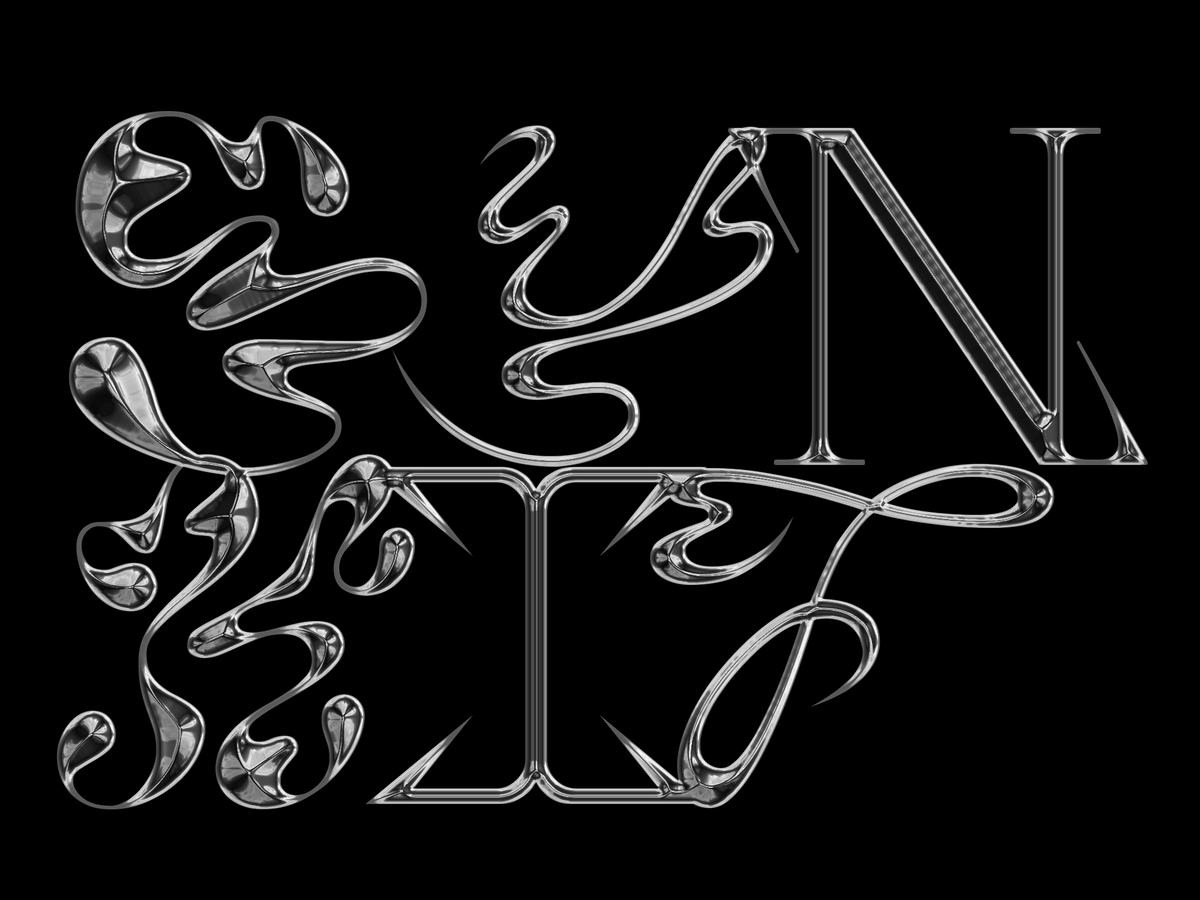
Glow Machine renders Bloom, Anamorphic, and Glare onto separate layers. Your original artwork stays separate, too.
Adjust the opacity, add a mask, or keep editing in Photoshop. Final output uses your document’s full native resolution.
Separate effect layers. Full-resolution output.
The Single License is for individual use and includes 2 seats.
The Team License is designed for teams and includes 5 seats.
Glow Machine requires Photoshop 25.0 or later.
The generated glow sits on separate effect layers. Your original artwork is kept separate, so you can continue editing and adjust each glow layer in Photoshop.
No. Preview quality controls the working preview. The final render uses the document’s full native resolution.


